| |
| |
 |
|
|
|
| |
| |
| |
|
|
| |
| |
| |
|
|
|
| |
| |
|
|
IEPasswordDecryptor is the FREE software to quickly and easily recover
all the stored passwords from Internet Explorer. It
can recover both Autocomplete and HTTP basic authentication
passwords from IE secret store. User can double click on any of the
entry to visit the website which makes it easy to verify sign-on
passwords.
It automatically detects the installed IE version and use
appropriate technique to successfully decrypt all the stored
passwords in plain text.
|
|
| |
It
also presents 'IE History Manager' interface which not only displays the
contents of IE history in detail but also provides the option to
add/remove websites with ease. User can save the displayed password list
and IE history list to TEXT as well HTML file for offline verification &
storage.
Current version 3.0 brings in the command line interface
which can greatly help penetration testers to recover
passwords from compromised system. You will also see better user
interface, new banner and improved HTML report. |
| |
IEPasswordDecryptor can recover passwords from all version of
Internet Explorer starting from version 4.0 to latest version
9.0.
It works on wider range of platforms starting from Windows XP to
Windows 7. |
| |
| |
| |
|
Here are the special features of
IEPasswordDecryptor
|
- Recover Autocomplete and HTTP basic authentication based
passwords from IE version 4.0 to 9.0
- Presents both GUI and Command-line interface.
- Useful for Penetration testers and Forensic investigators.
- Feature to reset the 'Content Advisor Password' of Internet Explorer
- Export option to save the decrypted password list to TEXT or
HTML file.
- Includes 'History Manager' which displays websites stored in IE history along with option to
add/remove entries
- 'Add Website' option to add website link to existing IE
history to help in recovering password for which website link is not
present in IE history (applicable for IE version 7 or more).
- Includes Installer for assisting you in local Installation & Uninstallation.
|
| |
| |
|
Like most browsers, Internet Explorer also has the single sign-on
feature which stores the username/password for already authenticated
websites. Whenever user login to any website, IE prompts the user
for consent to store the password for future use. If user
acknowledges then username/password along with website link will be
stored in IE secret store. So the next time onwards whenever user
visits the same website, IE automatically populates the
username/password field from its store thus preventing user from
entering credentials every time.
Internet Explorer stores two type of passwords, Autocomplete and
HTTP basic authentication based passwords. Autocomplete passwords
are normal website login passwords such as email, forum websites.
HTTP basic authentication password is the one which is required to
login to website itself. As soon as user tries to access the
website, IE prompts with login dialog box asking for
username/password. Generally proxy servers and router/modem
configuration websites uses these kind of authentication mechanism.
|
| |
Internet Explorer below version 7
stores both Autocomplete and HTTP
basic authentication passwords in the secure location known as 'Protected Storage'. Windows has introduced 'Protected Storage' to allow
applications such as IE, Outlook to store the secrets securely in an
encrypted format. Below is the registry location corresponding to the
'Protected Storage'.
|
|
HKEY_CURRENT_USER\Software\Microsoft\Protected Storage System Provider
|
|
With version 7 onwards IE has changed the location of password store
to provide better security mechanism compared to existing 'Protected
Storage'. Now IE stores all the Autocomplete passwords in below
mentioned registry location in an encrypted format. |
|
| HKEY_CURRENT_USER\Software\Microsoft\Internet Explorer\IntelliForms\Storage2 |
|
Here is the screenshot of typical entries stored at this location
|
|
 |
Here each entry corresponds to a hash of the website for which
username/password has been stored. So one must know the website login
link to recover the password. In order to solve this problem,
IEPasswordDecryptor uses the website list from the IE history and
verifies if any of them matches with stored hash entry. So if a
website link is not present in the IE history then the password for such
stored website entry cannot be recovered. In such case you can use 'Add
Website' option of IEPasswordDecryptor to add the website link to
existing IE history as shown in the Screenshot 3 below. |
|
The HTTP basic authentication passwords are stored in the 'Credentials
store'. The 'Credentials Store' is newly introduced secret store
mechanism by Windows and it is generally used to store the network login
passwords. Its location is given below.
|
|
[Windows XP] C:\Documents and Settings\[username]\Application
Data\Microsoft\Credentials
[Windows Vista\Windows 7] C:\Users\[username]\AppData\Roaming\Microsoft\Credentials |
| |
IEPasswordDecryptor automatically detects the IE version and
correspondingly decrypt the username/passwords from the appropriate
secret store.
For more detailed technical information on decrypting the passwords from
IE store read the article on
'Exposing the Password Secrets of Internet
Explorer'.
|
| |
| |
| |
|
| IEPasswordDecryptor comes with
Installer to assist in local installation and un-installation. It has intuitive wizard (as shown in the screenshot below) which
guides you through series of steps in completion of installation. At any
point of time you can use Uninstaller to remove the software from the
system. |
| |
 |
| |
| |
| |
|
IEPasswordDecryptor is a standalone application which does not
require any installation and can be directly run after copying to local
system. It comes with both IE password manager as well as IE history
manager feature.
|
| |
- Launch the IEPasswordDecryptor on your local system.
- It will automatically detect the Internet Explorer version and displays Autocomplete
as well as HTTP
basic authentication passwords.
- You can double click on any of the displayed entry to visit the
website directly for quick verification.
- Next you can save the username/password list to text or html
file by clicking on 'Save to Text' or 'Save to HTML' button.
- It also provides option to reset the IE content advisor
password.
|
|
|
|
Here is the simple usage of command line version |
|
|
|
IEPasswordDecryptor.exe "<output_file path>" |
|
|
|
Here are some of the examples |
//Writes recovered
password to text file in current directory
IEPasswordDecryptor.exe output.txt
//Writes recovered
password to HTML file in current directory
IEPasswordDecryptor.exe output.html
//Writes recovered
password to TEXT file IEPasswordDecryptor.exe "c:\my
test\passlist" |
|
It automatically detects the mode (text or html) by using the extension
of the specified file (txt or html). By default (or if no extension is
specified) it uses the TEXT mode. For more examples refer to Screenshot
2
below. |
|
|
|
|
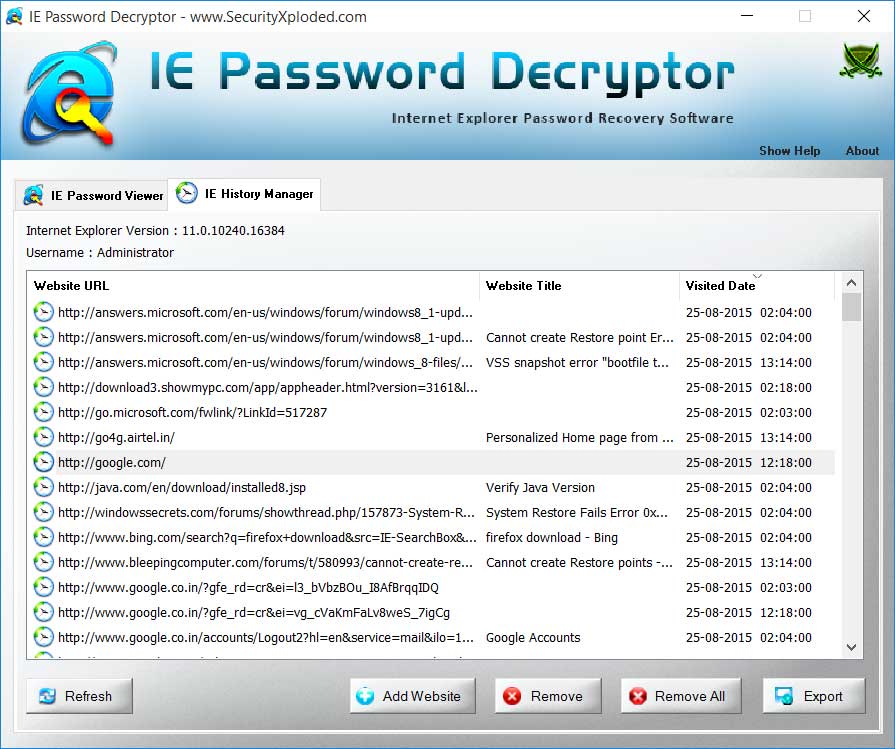
- After launching the IEPasswordDecryptor, click on 'IE History
Manager' tab as shown in the screenshot 2 below.
- It will display all the websites from IE history along with website link, website title and visited date.
- You can use the Remove/'Remove All' button to remove either single or
all websites from IE history.
- Next you can save this history list to html file by clicking on
'Save to HTML' button.
- Optionally, you can use 'Add website' button to add website link
to existing IE history. This will help in recovering password for
the website whose entry is missing from IE history. Because IE 7 & 8
require website link to recover the stored password.
|
| |
| Here are some of the popular website links which you can add using
'Add website' option. |
- [All Google websites, Gmail, Orkut etc] https://www.google.com/accounts/servicelogin
- [Digg] http://digg.com
- [Twitter] http://twitter.com
- [Linkedin] https://www.linkedin.com/secure/login
- [AOL] https://my.screenname.aol.com/_cqr/login/login.psp
- [Myspace] http://www.myspace.com
- [Amazon] https://www.amazon.com/gp/css/homepage.html
- [Stumbleupon] http://www.stumbleupon.com/sign_up.php
- [Slashdot] http://slashdot.org/bookmark.pl
- [Reddit] http://www.reddit.com/login
|
| |
| |
| |
|
| Here are the screenshots of
IEPasswordDecryptor showing it in action... |
| |
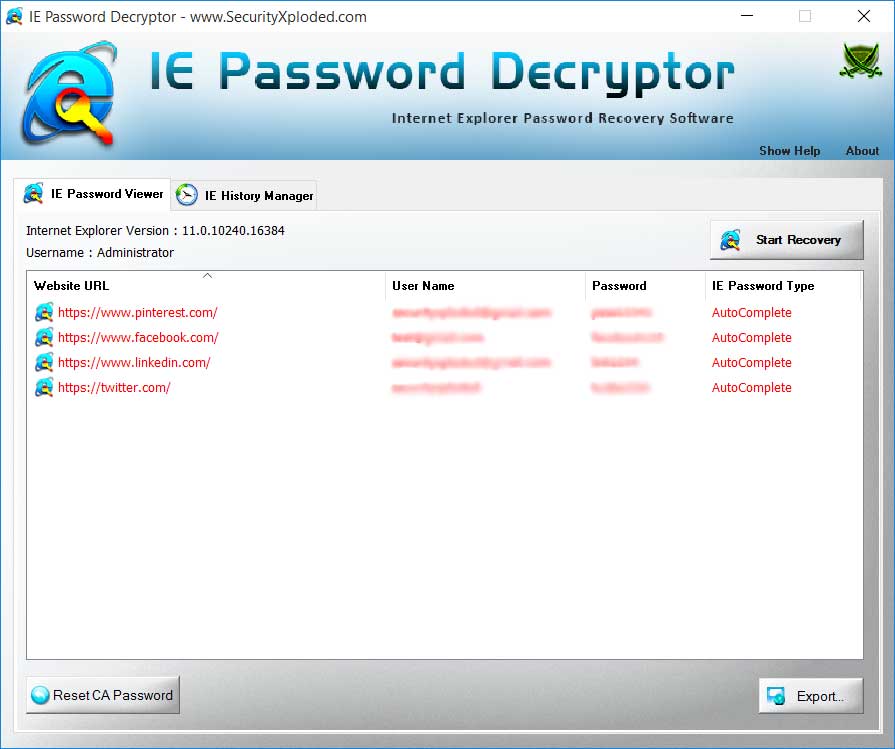
| Screenshot 1: IEPasswordDecryptor showing the decrypted username &
passwords from Internet Explorer. |
| |
 |
| |
| |
| Screenshot 2: Using command-line version of IEPasswordDecryptor
to recover the IE passwords. |
| |
 |
| |
| |
| Screenshot 3: IEPasswordDecryptor showing the history manager
to view/add/remove the websites stored in IE history. |
| |
 |
| |
| |
| Screenshot 4: 'Add Website' option to add the website link to
existing IE history. This helps in recovering password (only for IE
version 7 or more) for the website whose entry is not present in the IE
history list. |
| |
 |
| |
| |
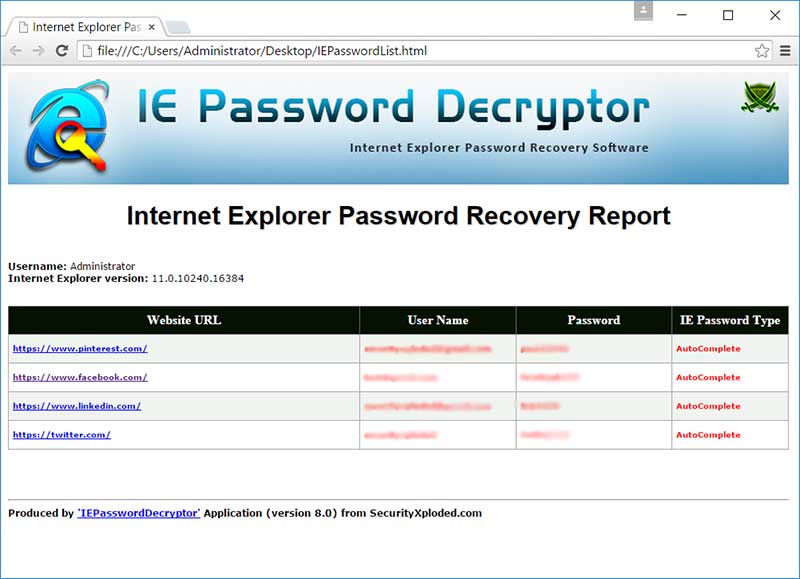
| Screenshot 5: Exported website username/password list in standard
HTML format by IEPasswordDecryptor. |
| |
 |
| |
| |
| |
|
| Presents command-line interface, improved user interface with new
banner, icons and better HTML report. |
| |
| Added new logo, link for passwordforensics.com in about section and
few bug fixes. |
| |
| vibrant look & feel
with new banner and refined interface. It includes the
software update verifier to automatically check for new
versions. Brings in Installer with 'Intuitive Setup Wizard' which allows you to
locally install this software on your system. |
| |
| This version presents the enhanced look & feel with cool button
interface. |
| |
| Support for Windows 7 version. Added functionality to display
multiple account information for IE 6 autocomplete entries. |
| |
| First public release of IEPasswordDecryptor supporting the recovery
of sign-on passwords from all versions of Internet Explorer along with
support for managing IE history. |
| |

|
| |
| |
|
|
|
| |
| |
| |
| |
|
|
| |
| |
| |
| |
| |
| |
| |
| |
| |
| |