Chrome Password Decryptor is the FREE tool to
instantly recover all stored passwords from Google Chrome
browser. It automatically detect the default Chrome profile path for
the current user and displays all the stored login passwords in
clear text after decrypting them. It also shows all the blacklisted
website entries for which user has prompted Chrome to not to
remember the passwords.
Another useful feature of this tool is the
Save option which can
be used to save the login secrets to the local file in standard HTML/XML/Text
format. This will be very useful in following cases
To take backup of the login secrets for the stored websites
To transfer the secrets from one system to another.
To store the website passwords at more secured centralized
location
To recover the passwords in case Chrome becomes not accessible or
non functional.
New version v3.5 provides support for latest version of Chrome
(v16.0.912.75), generates report in XML format for GUI as well as
cmdline mode and cool interface with new banner.
It presents
the command line interface which is more helpful for Penetration
testers in their work. Apart from normal users who can use it to recover
their lost password, it can come in handy for Forensic
officials in their investigation.
It works on wide range of platforms
starting from Windows XP to latest operating system, Windows 7.
About Google Chrome and its Password Manager
Google Chrome browser is the latest
entry into the ongoing web browser's war which is mainly ruled by IE
and Firefox. The word Google behind the Chrome has given it lot of
hype and popularity than any other browser got in such a short
duration. However some of the salient features such as searching from the
same address bar, thumbnails of top sites, private browsing etc
makes it stand apart from other browsers in the market.
Like other browsers Chrome also has built-in login password manager
functionality which keeps track of the login secrets of all visited
websites. Whenever user logins to any website, he/she will be
prompted to save the credentials for later use and if user chooses
so, then the username & passwords will be stored in internal login
database. So next time onwards whenever user visits that website,
he/she will be automatically logged in using these stored
credentials which saves hassle of entering the credentials every
time.
ChromePasswordDecryptor helps in easily and instantly
recovering all such stored passwords from Chrome Login database.
Internals of Chrome Password Decryptor
Chrome stores all the sign-on secrets into the internal database
file called 'Web data' in the current user profile
folder. Newer version has moved the login passwords related database
into new file named 'Login Data'.
This database file
is in SQLite format and contains number of tables storing different kind
of data such as auto complete, search keyword, ie7logins etc in addition
to login secrets.
The logins table mainly contains the information about sign-on secrets
such as website URL, username, password fields etc. All this information
is stored in the clear text except passwords which are in encrypted
format.
ChromePasswordDecryptor loads the secrets from logins table and then
decrypts the password for each of the websites stored by Chrome.
For more information on decrypting the passwords from Chrome database
file, read the following research article,
This Video demonstrates how to use ChromePasswordDecryptor to
instantly recover the Chrome Passwords using GUI & Command-Line
interface.
Installation & Uninstallation
It comes with simple Instaler that helps you to install it locally
on your system for regular usage. It has intuitive setup wizard (as
shown in the screenshot below) which guides you through series of steps
in completion of installation.
At any point of time, you can uninstall the product using the
Uninstaller located at following location (by default)
ChromePasswordDecryptoris easy to use with its simple GUI interface.
For advanced users & Penetration testers, it also comes with command
line interace.
Here are the brief usage details for both GUI and
command line version.
Using GUI Version
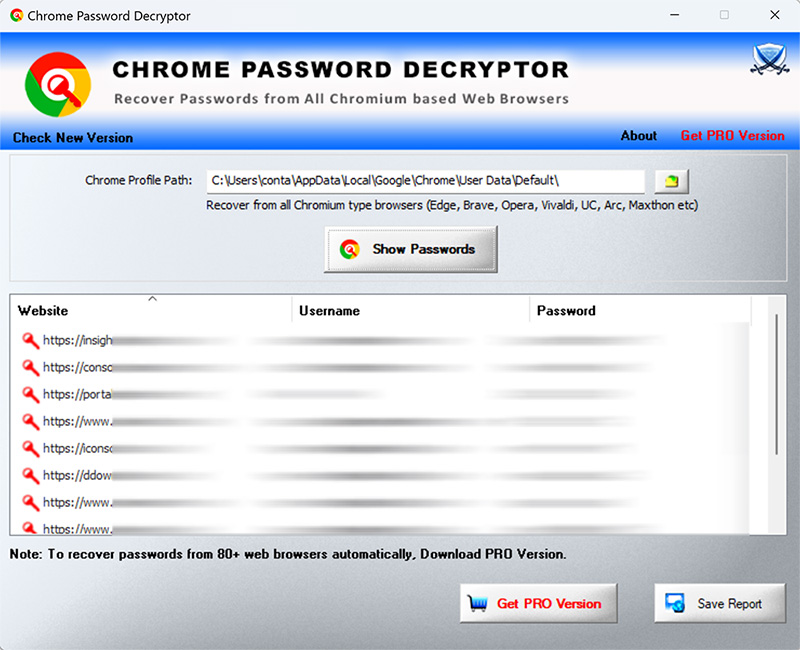
Launch ChromePasswordDecryptor on your system
By
default it will automatically display the default chrome
profile path for current user. However you can change the path using the
'browse' button besides it.
Next click on 'Start
Recovery' button and all stored website login passwords stored by
Chrome will be displayed in the list as shown in screenshot 1
below.
By default passwords are HIDDEN for security
reasons as it is sensitive data. However you can click on'Show
Password' button at the bottom to view these passwords.
Finally you can save all recovered password list to
HTML/XML/Text
file by clicking on 'Export' button and then select the type
of file from the drop down box of 'Save File Dialog'.
Note that for Chrome Canary build you need to set the
profile path as below
[Windows XP] C:\Documents and
Settings\<user_name>\Local Settings\Application Data\Google\Chrome
SXS\User
Data\Default
[Windows Vista & Windows 7]
C:\Users\<user_name>\Appdata\Local\Google\Chrome SXS\User Data\Default
Using Command-line Version
Here is the typical usage of command line version
ChromePasswordDecryptor.exe "<output_file path>"
Here are some of the examples
//Writes recovered
password to text file in current directory
ChromePasswordDecryptor.exe output.txt
//Writes recovered
password to HTML file in current directory
ChromePasswordDecryptor.exe output.html
//Writes recovered
password to XML file in current directory
ChromePasswordDecryptor.exe output.xml
//Writes recovered
password to TEXT file ChromePasswordDecryptor.exe "c:\my
test\passlist"
It automatically detects the mode (text or html) by using the extension
of the specified file (txt or html). By default (or if no extension is
specified) it uses the TEXT mode. For more examples refer to Screenshot 2
below.
Screenshots
Here are the screenshots of
ChromePasswordDecryptor showing it in action...
Screenshot 1: ChromePasswordDecryptor showing the blacklisted websites and decrypted passwords from the Chrome store.
Screenshot 2: Command line usage of ChromePasswordDecryptor showing various examples.
Screenshot 3: Exported Chrome passwords in standard HTML format
by ChromePasswordDecryptor
Release History
Version 3.5 : 11th Jan 2012
Support for latest version of Chrome (v16.0.912.75), generate report
in XML format for GUI as well as cmdline mode and cool interface with
new banner.
Added support for command line usage. Now pentesters can use this
tool in their work !
Version 2.5 : 10th Nov 2010
Integrated Installer to support local installation and
uninstallation of this tool. Better GUI with new banner & new icon.
Version 2.1 : 23rd Oct 2010
Added version detector functionality to automatically check for new
version.
Version 2.0 : 15th Sep 2010
Support for recovering password from latest Chrome version, It also
adds cool interface, better icons and a good report.
Version 1.6 : 2nd Mar 2010
Enhanced user interface with cool buttons and additional export
options to save to password list to text file.
Version 1.5 : 11th Jan 2010
Support for Windows 7. Fixed the problem with database file
being locked while Chrome is running.
Version 1.0.1 : 12th July 2009
First public release of ChromePasswordDecryptor featuring the
recovery of login secrets stored by Chrome and Export option to save the
credentials to file.